

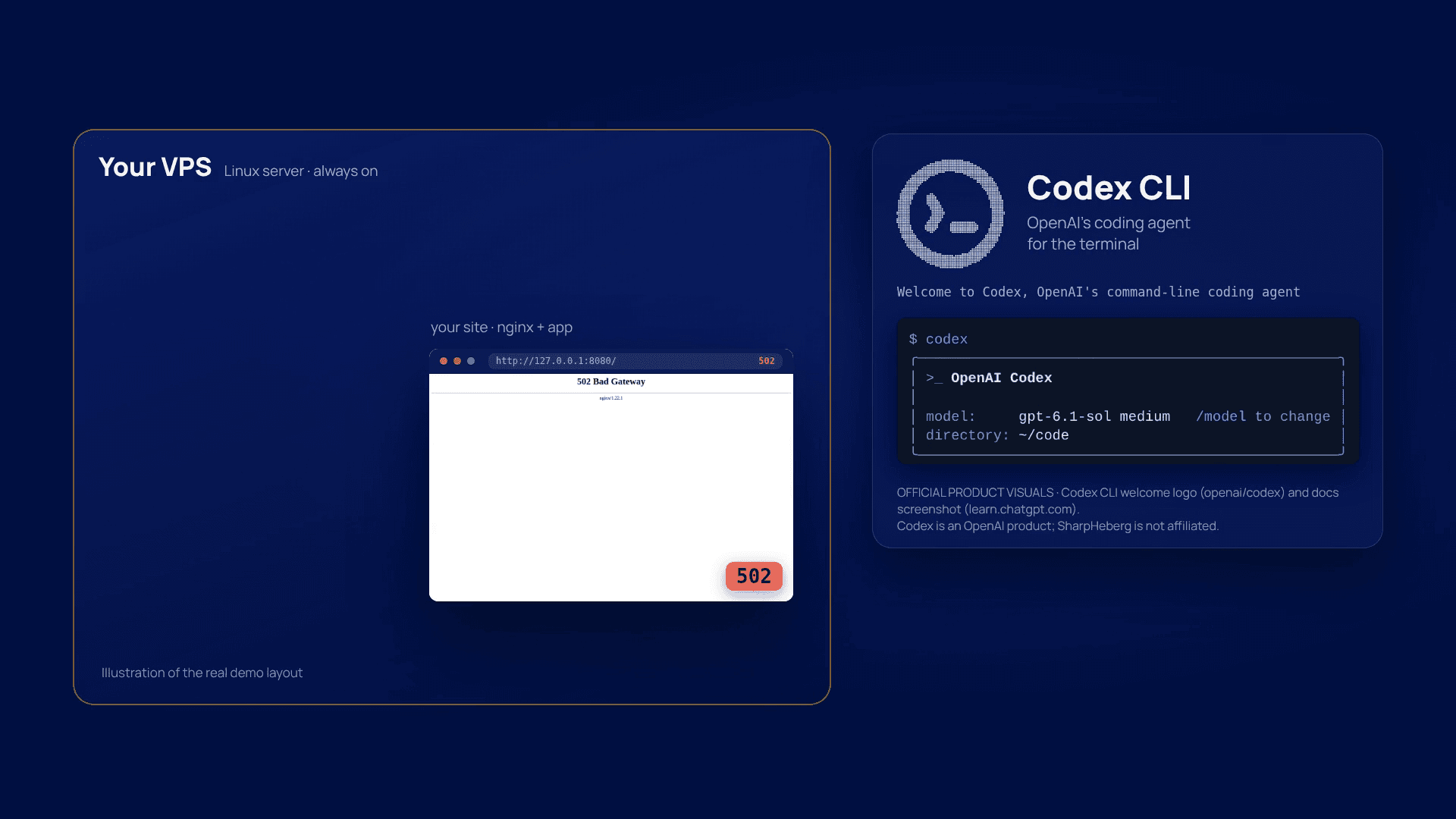
A site returns a 502 error. Instead of copying logs into a chatbot, you ask an AI agent on the server to inspect the relevant files and explain the problem. That is one practical use for Codex CLI on a Linux VPS.
This guide covers installation, signing in from an SSH session, and a first task with restricted permissions. We then explain the real test behind our video: Codex identified a port mismatch on a deliberately broken demo site.
What runs where: the Codex agent and its command-line tools run on your VPS. With the OpenAI setup described here, the AI model runs in OpenAI’s cloud. You need your own eligible ChatGPT account or separately billed OpenAI API access. A SharpHeberg VPS does not include that access.
Before you start
- A Linux VPS you can access through SSH, with outbound HTTPS access. The package commands below target Debian and Ubuntu.
- A regular Linux user with sudo available for installing system packages. Run Codex as that user, not as root.
- An OpenAI account with Codex access. Check your plan’s current availability and limits; API billing is separate from a ChatGPT subscription.
- A test project or staging environment. Keep production credentials and unrelated customer files outside the agent’s accessible account and workspace.
You do not need to host the model’s weights or provision a GPU for this cloud-backed workflow. The resources your projects, build tools and services consume still matter when choosing a VPS.
Validation scope: our diagnostic demonstration ran on a disposable Debian 12 VPS using Codex CLI 0.164.0. That isolated experiment used a privileged diagnostic account; it is not the account setup we recommend for production. We also checked the official standalone installer in an isolated Linux x86-64 installation directory and verified the CLI version and login/sandbox options. We have not tested every Ubuntu release or VPS configuration.
1. Connect to your VPS
From your own computer, connect with your existing non-root SSH account. Replace the example user and address:
ssh youruser@YOUR_VPS_IPIf your server only has a root account, create and verify a separate account using your operating system’s administration instructions first. You should not give an AI agent a root shell just to get started.
On Debian or Ubuntu, install the download and project tools used in this guide:
sudo apt update
sudo apt install ca-certificates curl git less
These commands install system packages; they do not upgrade the whole server or change your firewall.
2. Install Codex CLI
OpenAI documents a standalone installer for macOS and Linux, as well as npm and Homebrew alternatives. The standalone route does not require you to install Node.js and npm first. See the official Codex CLI installation guide.
Download the installer into your own directory so you can inspect it before running it:
mkdir -p "$HOME/codex-setup"
curl -fsSL https://chatgpt.com/codex/install.sh -o "$HOME/codex-setup/install.sh"
less "$HOME/codex-setup/install.sh"
Press q to leave less. After reviewing the script, run it as your regular user:
sh "$HOME/codex-setup/install.sh"
export PATH="$HOME/.local/bin:$PATH"
codex --version
codex --help
The official installer defaults to ~/.local/bin and manages its standalone package under your Codex user directory. It can update your shell’s startup file. Reopen your terminal when prompted; the export above also makes the default install location available in the current session.
If the short download URL fails: the installer source is also available in the official OpenAI Codex repository. Download that source, inspect it, then use the same installation steps:
curl -fsSL https://raw.githubusercontent.com/openai/codex/main/scripts/install/install.sh -o "$HOME/codex-setup/install.sh"
less "$HOME/codex-setup/install.sh"
sh "$HOME/codex-setup/install.sh"
Do not replace this with a script from an unknown mirror. If the binary download itself fails, OpenAI documents CODEX_INSTALLER_USE_RELEASES_OPENAI_COM=false to select GitHub Releases:
CODEX_INSTALLER_USE_RELEASES_OPENAI_COM=false sh "$HOME/codex-setup/install.sh"If you already manage a supported Node.js/npm installation, the documented npm alternative is npm install -g @openai/codex. Choose one installation method rather than mixing several and wondering which codex is on your PATH.
3. Sign in from a headless server
Your VPS usually does not have a desktop browser. OpenAI recommends device-code authentication for this situation:
codex login --device-authFollow the link shown in your terminal on your own computer or phone, sign in, and enter the one-time code. You may first need to enable device-code login in your ChatGPT security settings, or have your workspace administrator allow it. Never send that code to someone else.
Then check the authentication method:
codex login statusIf device-code login is unavailable, OpenAI also documents an SSH tunnel for the normal browser login flow. Start this connection from your computer:
ssh -L 1455:localhost:1455 youruser@YOUR_VPS_IPInside that SSH session, run codex login and open its login link in your local browser. This forwards the localhost callback without exposing an authentication port publicly. Consult OpenAI’s headless-login instructions if your environment uses a different callback configuration.
Using an API key instead
If you prefer usage-based API access, provision your own OpenAI API key securely as an environment variable, then pass it through standard input:
printenv OPENAI_API_KEY | codex login --with-api-keyDo not paste a literal API key into a command saved in shell history. API usage is billed through your OpenAI Platform account, not deducted from your VPS hosting bill. Treat Codex’s stored credentials as passwords and keep them out of repositories, screenshots and support tickets. The official authentication guide explains both methods.
4. Start with a read-only task
Move into a test project whose files you understand. If you do not have one, an empty directory is enough to open the CLI and inspect the interface:
mkdir -p "$HOME/codex-first-session"
cd "$HOME/codex-first-session"
codex --sandbox read-only --ask-for-approval on-request
In a real test repository, a useful first prompt is:
Explain how this project starts. Read the relevant configuration and README files, identify the entry point, and list anything you cannot verify. Do not change files or install packages.
read-only restricts model-generated commands through the configured sandbox. on-request lets the model ask for additional approval; it does not mean every command automatically requires a confirmation. Read any escalation request before deciding whether to allow it.
A prompt saying “do not change anything” is not a security boundary by itself. Use a dedicated account and test environment, limit accessible data, and check the permissions presented by your installed version. Read-only access can still expose readable file contents to the model service.
Check codex --help and the CLI command reference before copying flags from an older tutorial. Avoid bypassing the sandbox or approvals to work around an installation error.
5. Move from an explanation to a useful server task
A sensible next step is to give Codex a small, explicit diagnostic scope. Prepare sanitized copies of the relevant logs and configuration inside a test directory, then ask:
This demo site returns HTTP 502. Inspect only the supplied nginx configuration, application entry point and error log. Explain the cause and propose the smallest fix. Do not edit files, install packages or restart services.
Review the proposed change before applying it yourself. For a real service, back up the configuration, validate it with the service’s own check, and prepare a rollback. An AI explanation is not evidence that a change is safe for production.
What happened in our demonstration
We deliberately misconfigured a demo site on a disposable VPS. Nginx forwarded requests to port 3000, while the application listened on 3001. The site returned HTTP 502.
Codex inspected the selected configuration, application and error log in read-only mode. It identified the mismatch and proposed a one-line correction in approximately 22 seconds, without editing the supplied files. Our production operator applied that proposal, checked the nginx configuration, reloaded the service and verified an HTTP 200 response.
This was one controlled test with a known, deliberately introduced fault. It is not a benchmark, a guarantee of repair time or a demonstration of unattended production recovery.
If something does not work
codex: command not found: reopen the terminal, checkcommand -v codex, and confirm the installer directory is on your PATH.- The installer URL or download is blocked: use the official repository source and documented GitHub Releases selection above. Do not disable TLS verification.
- Login cannot open a browser: use device-code login or the documented SSH tunnel. Do not publish localhost authentication ports.
- You hit a usage limit: check the account and authentication method shown by
codex login status. Installing the CLI or buying a VPS does not remove OpenAI usage limits. - Sandbox or helper errors: keep the complete official installation together and check your distribution’s support for the required isolation mechanisms. A container or restricted VPS may have additional constraints. Do not solve this by running Codex as root or disabling its safeguards.
Watch the demonstration, then try it on your own VPS
Our accompanying video follows the diagnostic example from the broken site to the verified response. It demonstrates what the installed agent can help you investigate; the installation commands are in this guide.
Start with a test project, keep the agent’s permissions narrow, and verify each result. If you need a server for that workspace, explore SharpHeberg Linux VPS plans. Your OpenAI account and usage remain separate from the hosting service.


