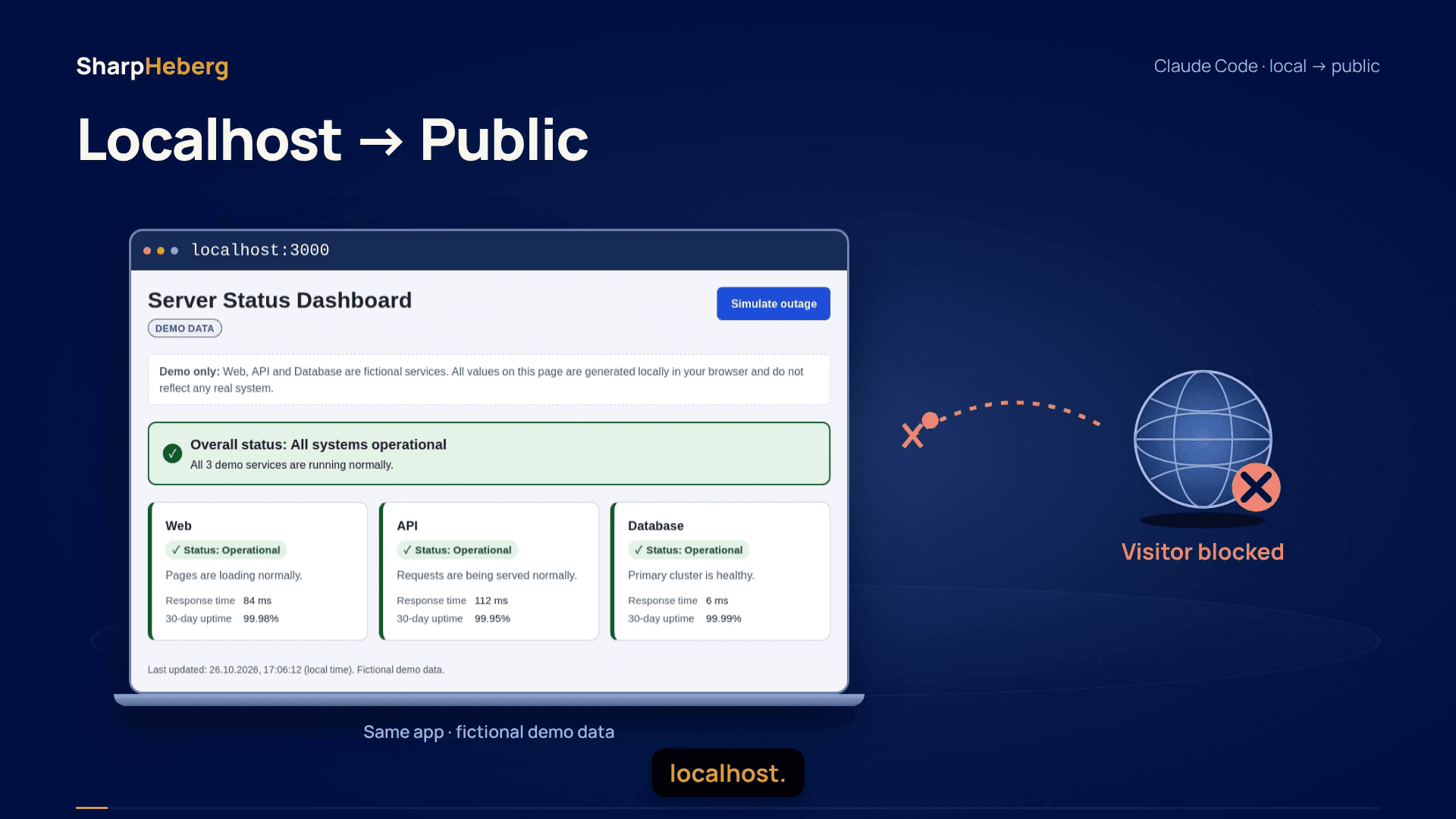
Your app works on localhost. Now you want to share it through a real domain, without leaving your laptop running. The missing pieces are a VPS, a managed application process, DNS and an HTTPS reverse proxy.
This guide shows that path with a small Node.js app. Claude Code can help inspect your project and prepare configuration for review; you remain responsible for the server changes. The model is not installed on the VPS, and Claude access and billing are separate from hosting.
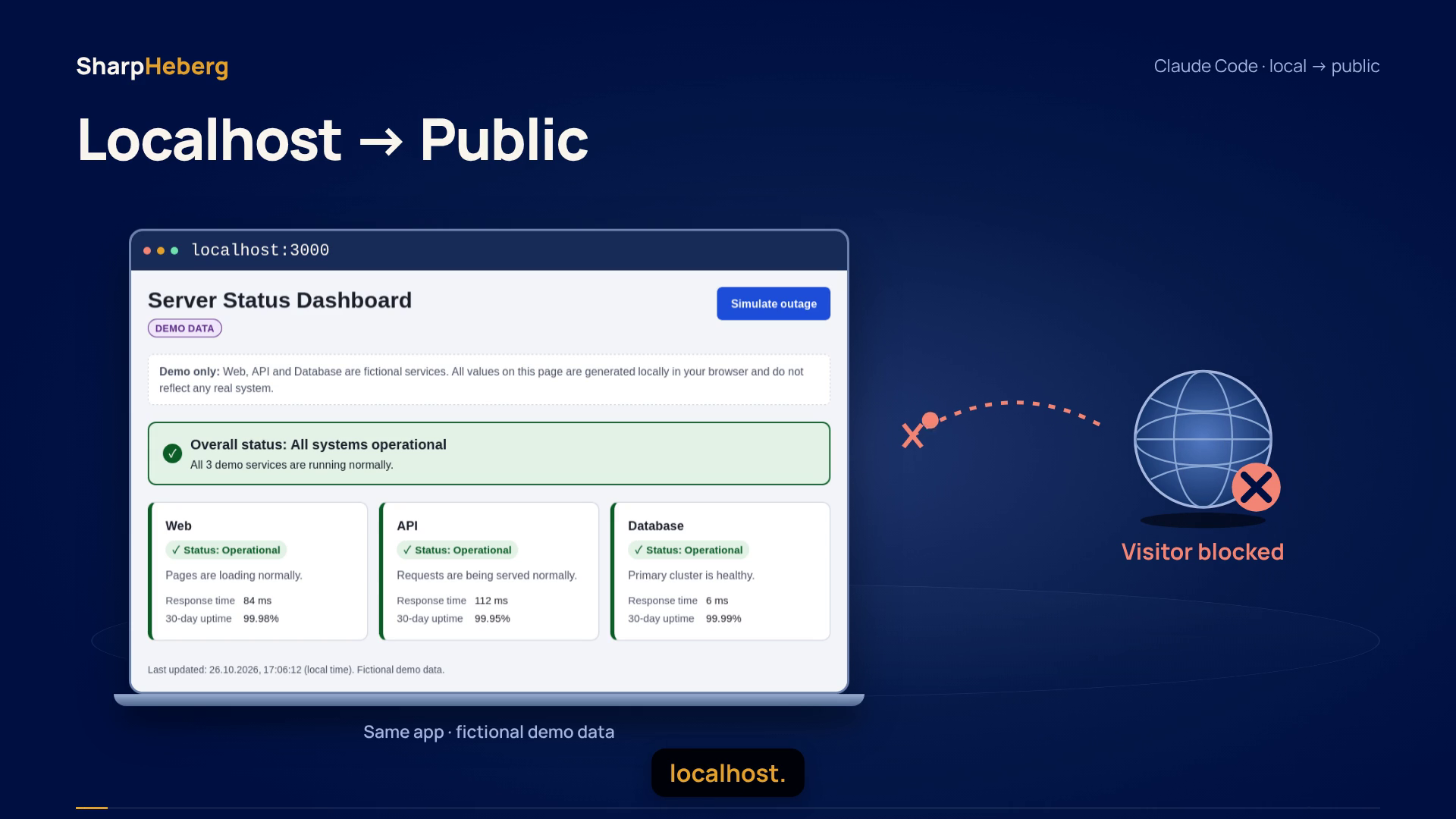
Watch the deployment overview
What we actually tested: a real dashboard originally created by Claude Code was deployed by our operator to a disposable Linux VPS. We verified public DNS, trusted HTTPS, HTTP-to-HTTPS redirection, non-root application and proxy processes, and access after restarting the application service. There was no new autonomous Claude deployment run. The suggested prompt below is instructional, not a recorded response.
Before you start
- A Linux VPS with systemd and an SSH account with sudo access. Use a test VPS first; do not overwrite an existing site’s services or web configuration.
- A supported Node.js LTS runtime installed for the server, and Caddy installed as a system service. Install these prerequisites before following the deployment steps.
- A domain or subdomain whose DNS records you can edit.
- A small, self-contained app. Our example serves
index.htmlusingserver.mjs, with no package dependencies or database.
Framework applications need their own build command, start command, dependencies and storage plan. Do not assume a Next.js, Python or database-backed project can use this two-file example unchanged.
1. Ask Claude Code to inspect the project before changing it
Start in your local project directory. A useful first request is:
Inspect this project without changing files. Identify its runtime,
build and start commands, configuration and secrets. Propose a Linux
VPS deployment using a non-root systemd service and Caddy HTTPS.
Bind the app to 127.0.0.1:3000. Explain each proposed file and
verification step. Do not connect to a server or edit DNS.
Claude Code’s documented workflows include planning before editing. Review the proposed changes rather than accepting deployment commands blindly. Keep API keys, production credentials and private SSH keys out of prompts and repositories; read-only access does not make sensitive files confidential.
2. Prepare and transfer the application
For this exact minimal example, save your HTML as index.html and use the following server. It binds to loopback by default and does not expose arbitrary project files:
import {createServer} from 'node:http';
import {readFileSync} from 'node:fs';
import {fileURLToPath} from 'node:url';
const page=readFileSync(new URL('./index.html',import.meta.url));
export function createAppServer(){
 return createServer((req,res)=>{
  const pathname=new URL(req.url,'http://localhost').pathname;
  if(pathname!=='/' && pathname!=='/index.html'){
   res.writeHead(404,{'Content-Type':'text/plain; charset=utf-8'});res.end('Not found');return;
  }
  res.writeHead(200,{'Content-Type':'text/html; charset=utf-8','X-Content-Type-Options':'nosniff'});res.end(page);
 });
}
if(process.argv[1]===fileURLToPath(import.meta.url)){
 const host=process.env.HOST||'127.0.0.1';const port=Number(process.env.PORT||3000);
 const server=createAppServer();server.listen(port,host,()=>console.log(`Demo app listening on ${host}:${port}`));
 process.on('SIGTERM',()=>server.close(()=>process.exit(0)));
}
Run it locally with node server.mjs, open http://127.0.0.1:3000, then stop it before continuing. On a VPS that already uses port 3000, choose another private port consistently in both the service and proxy.
From your local project directory, replace deploy and VPS_IP with your SSH account and actual server address:
ssh deploy@VPS_IP 'mkdir -p ~/my-app'
scp index.html server.mjs deploy@VPS_IP:~/my-app/
On the server, install these two non-secret files into a readable application directory:
sudo install -d -m 0755 /opt/my-app
sudo install -m 0644 ~/my-app/index.html ~/my-app/server.mjs /opt/my-app/
command -v node
Record the absolute Node executable path. It must be accessible outside your login shell and home directory. A user-only version-manager installation under /home is not suitable for the hardened service below. Never copy a development .env, private key or database dump into a public web directory.
3. Run the app as a non-root systemd service
Use sudoedit /etc/systemd/system/my-app.service. Replace /ABSOLUTE/PATH/TO/node with the real server-wide executable path you just checked:
[Unit]
Description=My Node web app
After=network.target

[Service]
Type=simple
DynamicUser=true
WorkingDirectory=/opt/my-app
ExecStart=/ABSOLUTE/PATH/TO/node /opt/my-app/server.mjs
Environment=NODE_ENV=production
Environment=HOST=127.0.0.1
Environment=PORT=3000
Restart=on-failure
RestartSec=2
NoNewPrivileges=true
PrivateTmp=true
ProtectSystem=strict
ProtectHome=true

[Install]
WantedBy=multi-user.target
systemd’s execution controls document the dynamic account and hardening settings. This profile suits our read-only app; apps that write uploads or databases require deliberately configured persistent storage and permissions.
sudo systemctl daemon-reload
sudo systemctl enable --now my-app.service
sudo systemctl status my-app.service --no-pager
curl -fsS http://127.0.0.1:3000/
Resolve application errors before touching DNS. A service that is enabled is configured for boot-time startup, but that is not evidence of a completed reboot test.
4. Point a subdomain at the VPS
Create an A record for your chosen hostname, such as app.example.com, targeting your VPS’s public IPv4 address. With Cloudflare, our direct-server demonstration used DNS only and automatic TTL. Do not copy our demonstration IP into your own site’s records.
Check the public answer with dig +short A app.example.com. Inspect dig +short AAAA app.example.com too: if an IPv6 record exists, it must reach the same working deployment over IPv6. DNS only maps an address; it neither starts your app nor configures HTTPS.
5. Put Caddy in front of the private app
Keep the Node service on 127.0.0.1:3000. Make the public web ports 80 and 443 reachable through the provider firewall and host firewall, without removing your SSH access. Do not expose port 3000 to the internet.
Add this site block to your installed Caddy service’s configuration, replacing the example hostname. Preserve unrelated site blocks:
app.example.com {
    encode zstd gzip
    reverse_proxy 127.0.0.1:3000
}
The reverse_proxy directive forwards public requests to the private application. With a qualifying public hostname and working certificate-validation conditions, Caddy’s automatic HTTPS obtains and renews certificates and redirects HTTP to HTTPS.
For the standard Caddy system service and configuration path:
sudo caddy validate --config /etc/caddy/Caddyfile --adapter caddyfile
sudo systemctl reload caddy
Our filming VPS used a dedicated Caddy service and isolated configuration paths rather than the standard shared service above. The routing principle is the same; these reader-facing paths and service names are adaptations, not a verbatim installation transcript.
6. Verify the public result and a service restart
curl -I http://app.example.com/
curl -I https://app.example.com/
sudo systemctl restart my-app.service
curl --retry 5 --retry-delay 1 --retry-connrefused -I https://app.example.com/
Check for an HTTP redirect to HTTPS, a successful HTTPS response and a valid browser certificate. Do not use curl -k to conceal trust errors. Open the page from another network, not just from inside the VPS.
A failed restart check needs investigation: inspect journalctl -u my-app.service -n 50 --no-pager and Caddy’s service logs. DNS errors, incorrect IPv6, a stopped app, a wrong upstream port and blocked certificate validation are different problems.
We verified an application-service restart, not a VPS reboot or a high-availability setup. Before hosting a real business application, also plan updates, backups, monitoring, secret management and any persistent data.
From local project to a public address
The complete path is straightforward: prepare the project, transfer it to the VPS, keep it running as a managed non-root service, point DNS to the server and terminate public HTTPS at the reverse proxy. Claude Code can help prepare and explain these pieces; review and operational checks still matter.
Explore SharpHeberg Linux VPS plans when you are ready to bring a local project online. Hosting supplies the server environment, not an included Claude subscription or a locally hosted Claude model.